QuickBooks Integration
Connect QuickBooks Online to Cybership, map merchants and charge categories, and sync approved invoices.
The QuickBooks integration sends approved Cybership invoices to QuickBooks Online. During setup, you connect a QuickBooks company, map Cybership merchants to QuickBooks customers, map charge categories to QuickBooks items, and choose how invoice sync should run.
QuickBooks sync is used when an invoice is delivered to accounting. Invoice schedules and merchant setup decide whether new invoices use QuickBooks, email, or manual Cybership-only delivery.
Prerequisites
Before connecting QuickBooks, ensure you have:
- Access to a QuickBooks Online company that can authorize apps
- A Cybership account with permission to manage integrations
- Merchants configured in Cybership
- Charge categories ready for the invoice types you plan to sync
Connecting QuickBooks
-
Navigate to Integrations
- In Cybership, go to ShipOS → Settings → Integrations
- Click Add Integration and select QuickBooks
-
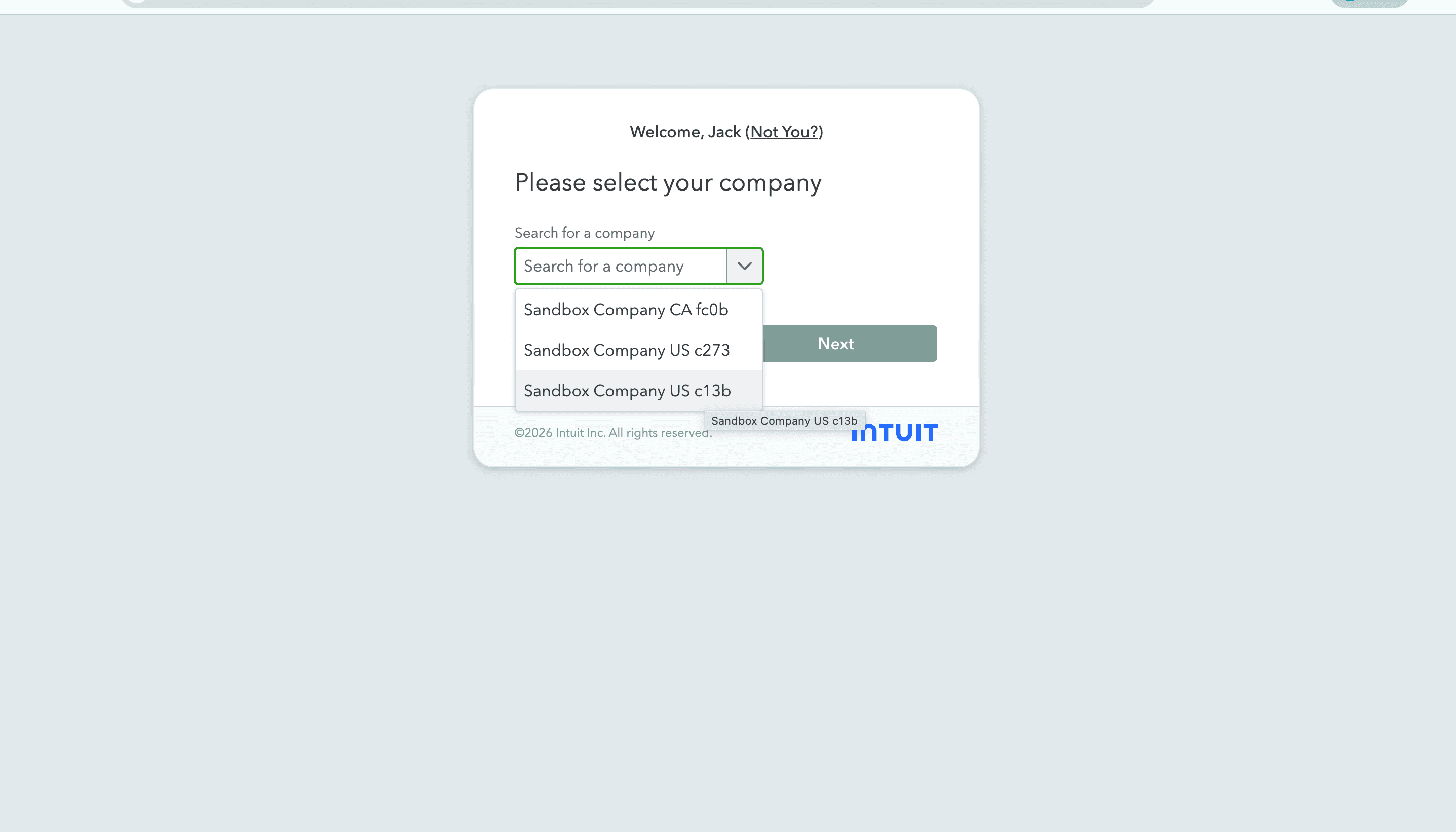
Select your QuickBooks company
- QuickBooks may ask which company you want to connect
- Select the company that should receive invoices from Cybership
-
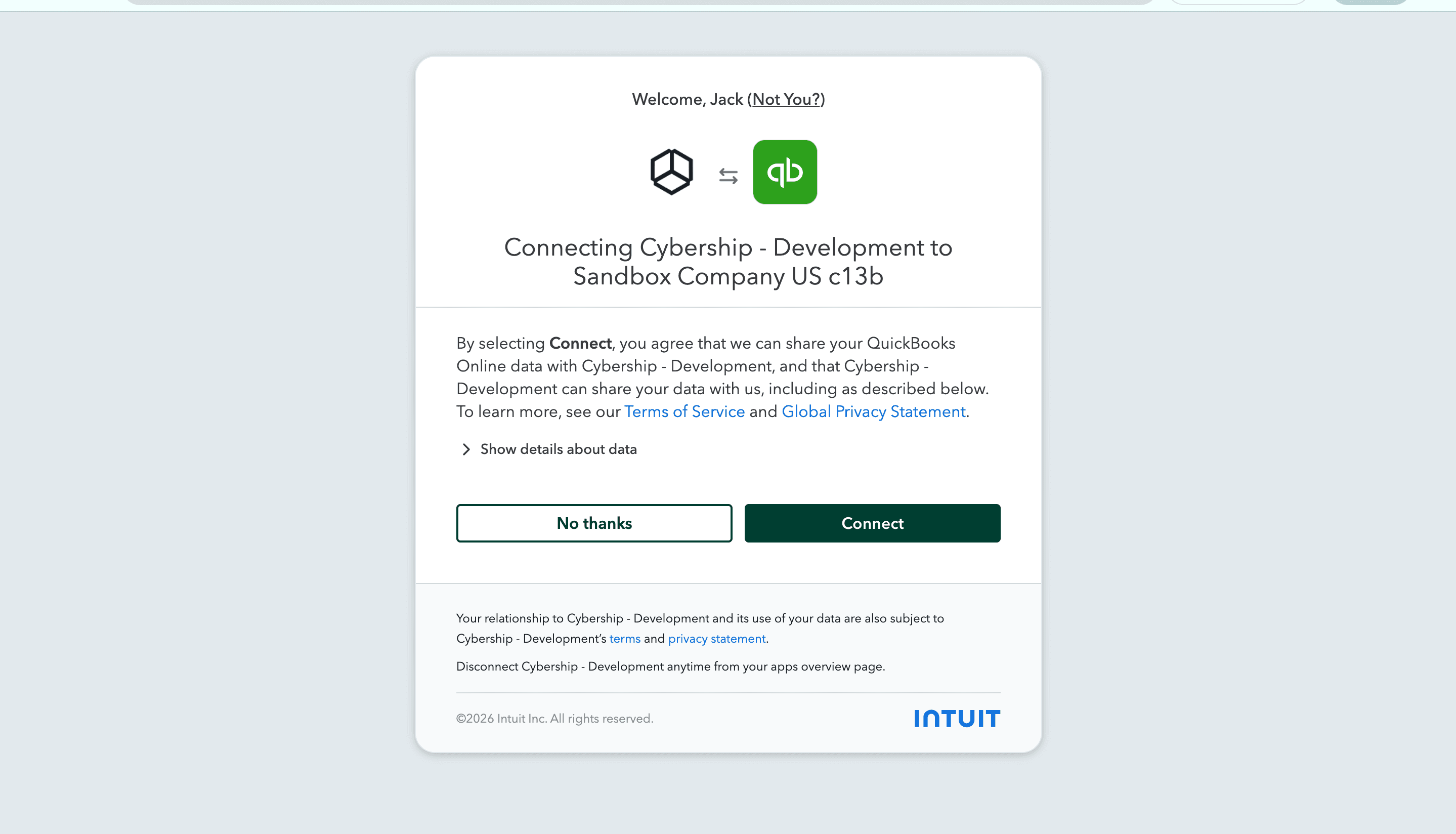
Authorize Cybership
- Review the QuickBooks authorization screen
- Click Connect to allow Cybership to access the selected company
- After authorization, QuickBooks redirects you back to Cybership
Complete the Setup Wizard
After QuickBooks redirects back to Cybership, complete the setup wizard before sending invoices.
1. Map merchants to QuickBooks customers
For each Cybership merchant, choose the QuickBooks customer that should receive that merchant's invoices. You can select an existing customer or create a new one.
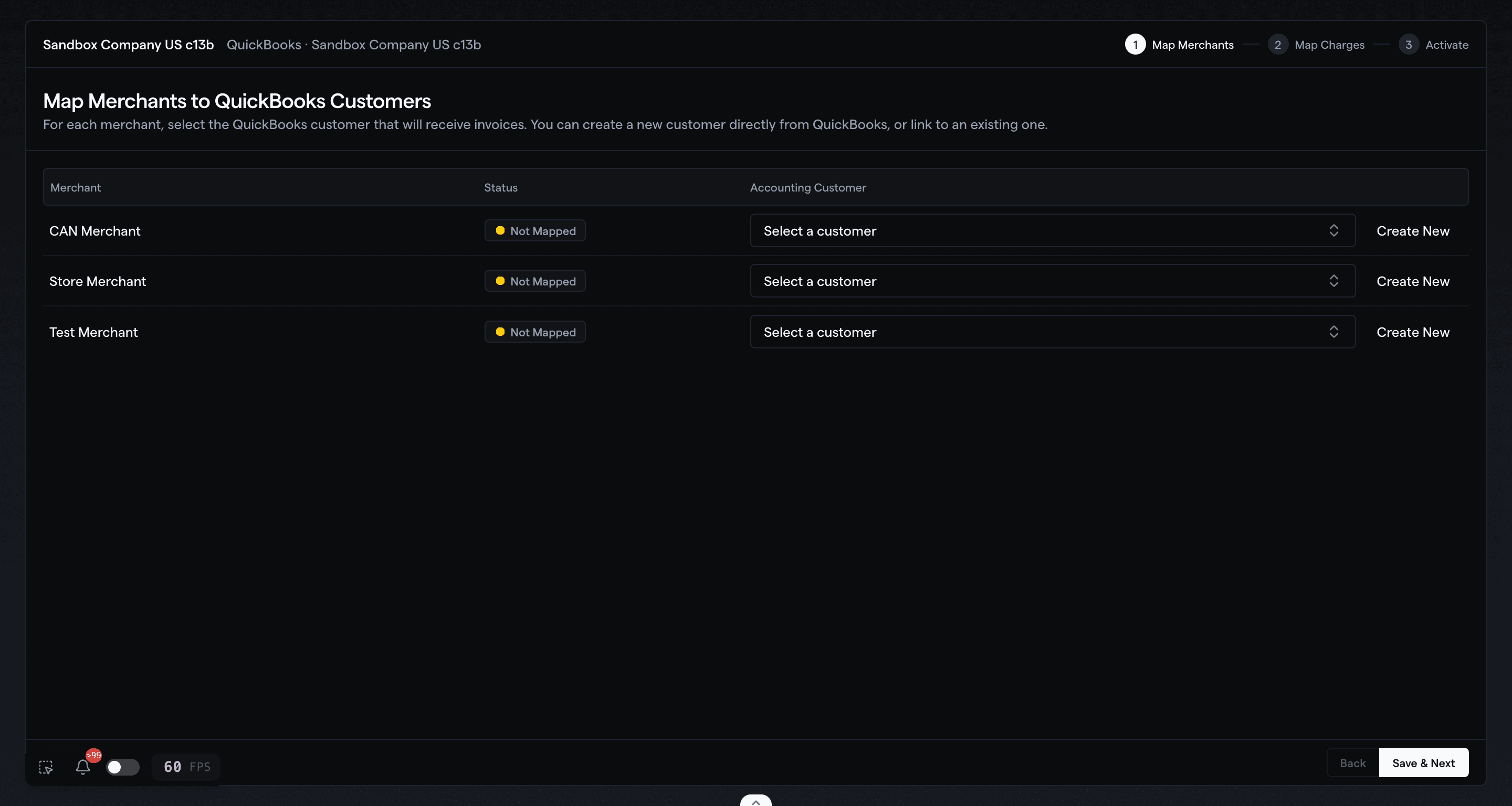
New merchants can also be mapped to a QuickBooks customer during merchant creation. If an invoice schedule sends that merchant's invoices to QuickBooks, Cybership requires a customer mapping before the merchant can be fully set up for accounting delivery.
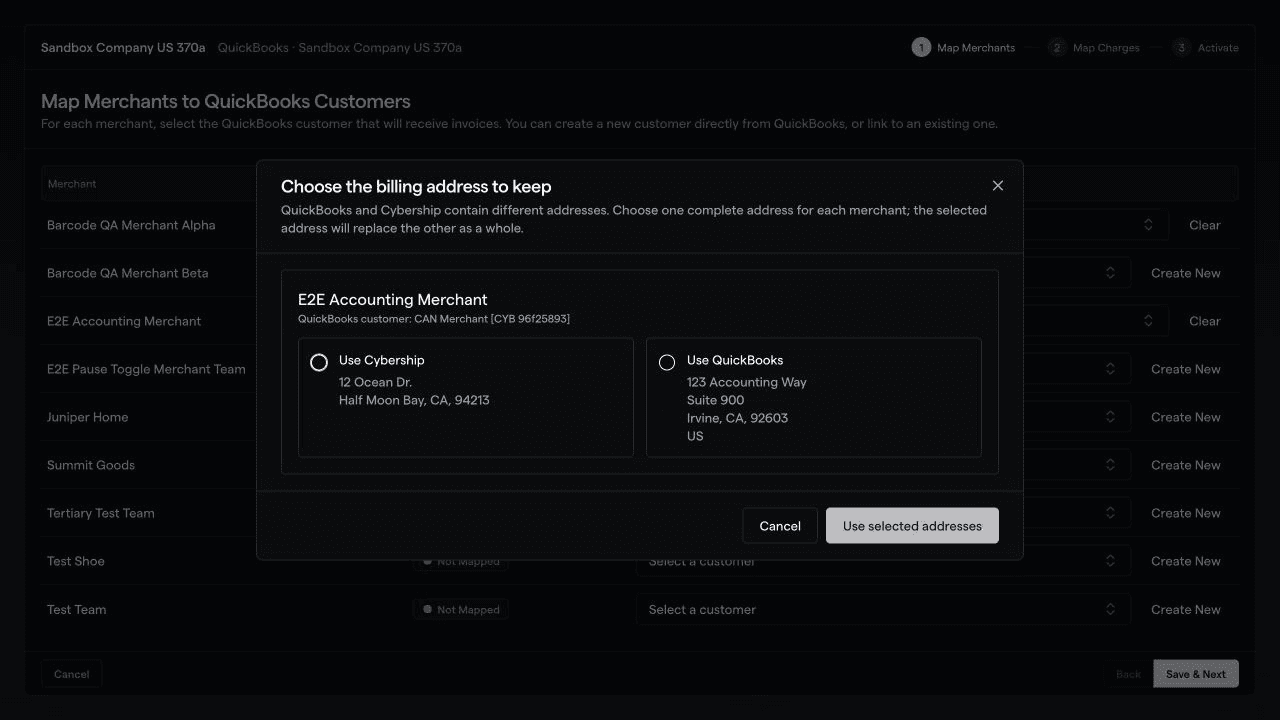
If the Cybership and QuickBooks billing addresses are both populated but different, Cybership shows both complete addresses and asks which one to keep. The selected whole address replaces the other in both systems. Cybership never combines individual fields from the two addresses, and an empty address never replaces a populated address.
2. Map charge categories to QuickBooks items
Select the QuickBooks item that should be used for each Cybership charge category. These items appear as invoice line items in QuickBooks.
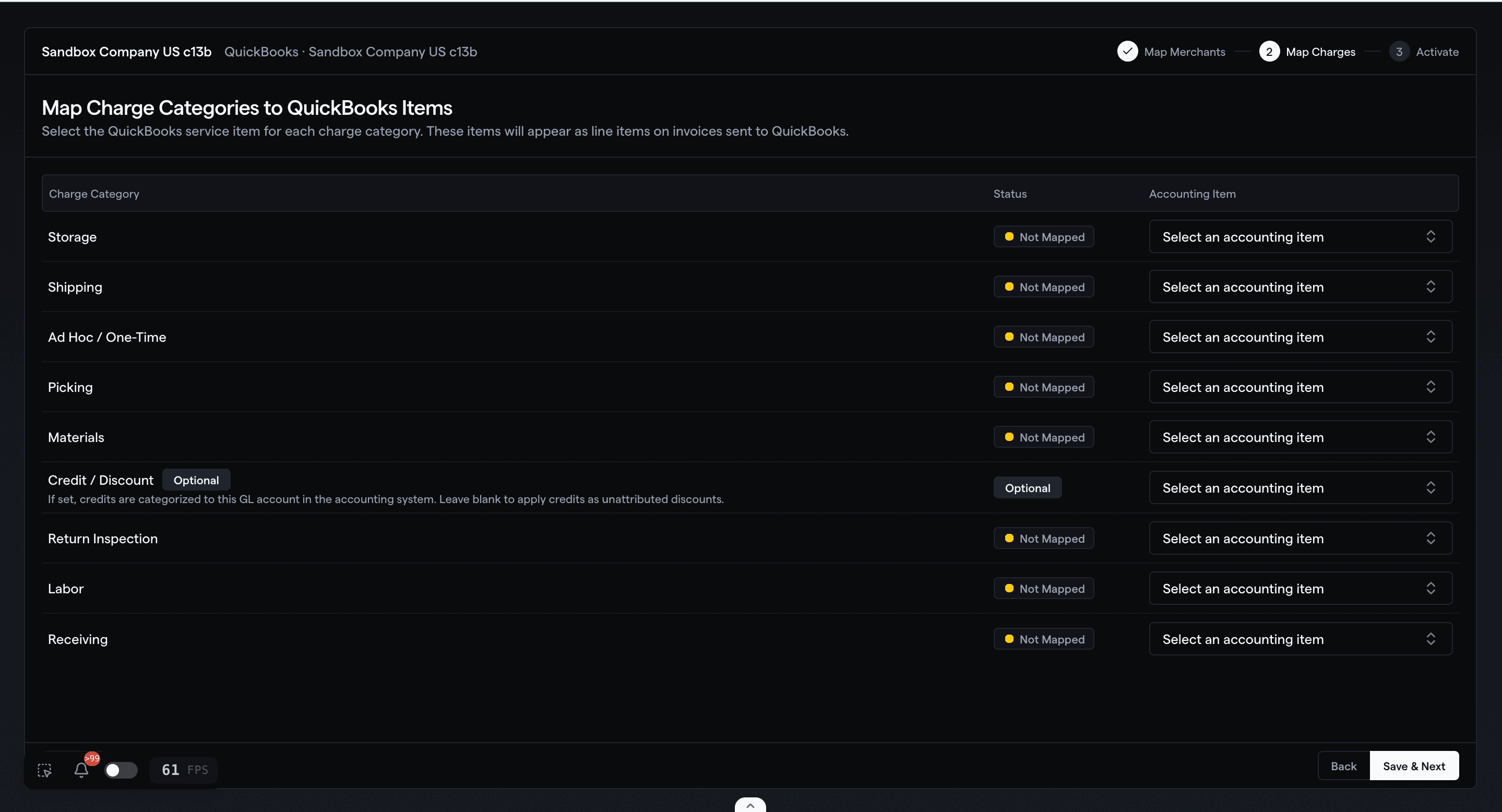
Credit / Discount mapping is optional. Required charge categories must be mapped before the integration can be marked ready for invoice sync.
3. Configure sync settings and activate
Choose how invoices and payment updates should sync:
| Setting | Description |
|---|---|
| Invoice sync mode | Automatic sync sends invoices to QuickBooks when they are approved. Manual sync queues approved invoices until you push them. |
| Payment sync | When enabled, QuickBooks payment updates can mark invoices as paid in Cybership. |
| Historical sync | When enabled, previously approved invoices can be pushed after activation. |
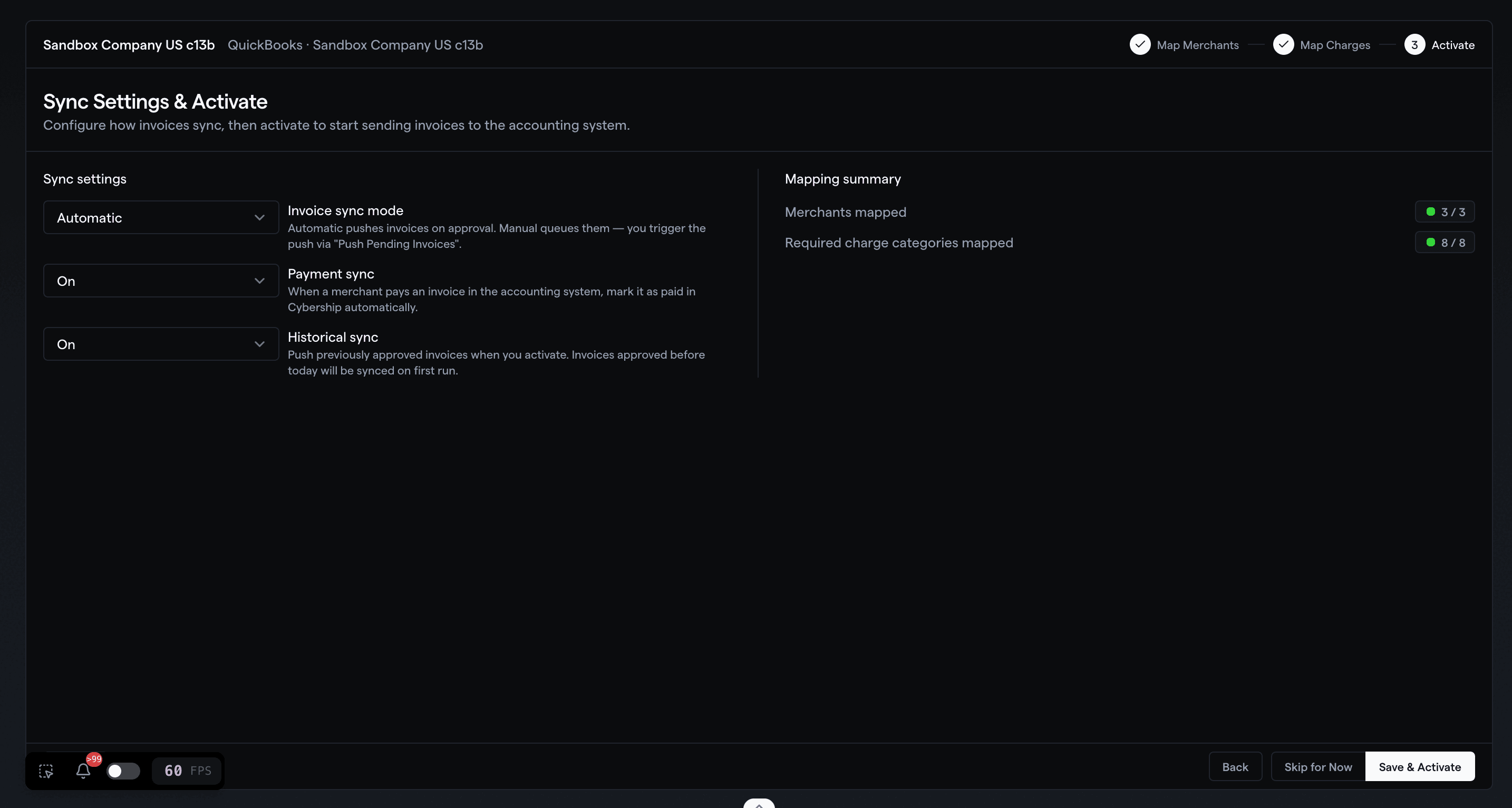
Click Save & Activate when the mappings and sync settings are ready.
After Setup
The integration card shows the current QuickBooks connection state. A ready integration shows badges such as Active, Default, Verified, and Mapping Ready.
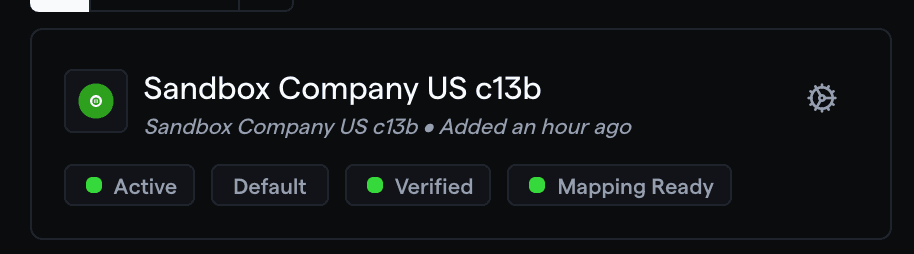
Common actions available from the integration menu include:
- Configure Accounting Integration: update connection settings and setup details
- Test Connection: verify Cybership can still reach QuickBooks
- Set As Default: make this the default accounting integration for the team
- Configure Scheduling: manage invoice scheduling behavior
- Manage Mappings: update merchant and charge category mappings
- Push Pending Invoices: send queued invoices when manual sync is enabled
How Invoice Sync Works
Approved invoices can be sent to QuickBooks based on your invoice delivery and sync settings.
- An invoice must use Accounting delivery with a QuickBooks integration before it can sync to QuickBooks.
- Each invoice records the QuickBooks integration and company selected for that invoice, so historical invoices continue to show the original destination even if schedules or defaults change later.
- Automatic sync sends invoices to QuickBooks when they are approved.
- Manual sync keeps approved invoices pending until you use Push Pending Invoices.
- The invoice page shows when QuickBooks delivery or a QuickBooks void is in progress. If an operation fails, it shows a safe action message while internal diagnostics remain available to support.
- Cybership periodically retries automatic invoice deliveries that failed or were missed. This recovery only sends Cybership invoices to QuickBooks; it does not import QuickBooks invoice edits.
- If an invoice due date is changed in Cybership and the invoice is already synced, Cybership pushes the updated due date to QuickBooks when the connected accounting integration supports it.
- QuickBooks remains the destination for accounting records; Cybership remains the source of truth for invoice setup and due date edits made in Cybership.
- PDF copies are stamped DRAFT before approval, PAID after full payment, and VOID after voiding. Unpaid and partially paid collectible invoices are not stamped.
Billing Address and Payment Updates
- A billing-address edit in Cybership is queued for each linked QuickBooks customer.
- A QuickBooks Customer update is fetched and reconciled back into Cybership, then shared with other linked QuickBooks customers for that merchant.
- Addresses are synchronized as a whole. A complete address wins over a partial one, and an empty address never wins. If Cybership cannot safely identify the newer usable address, it records a conflict instead of guessing.
- QuickBooks payment and invoice webhooks are the primary near-real-time way paid status reaches Cybership.
- When payment sync is enabled, a daily recovery check catches missed or delayed QuickBooks updates. It can mark an unpaid or partially paid Cybership invoice as paid; it does not send invoices to QuickBooks.
- Cybership periodically verifies mapped QuickBooks customers by their exact provider ID. A mapping is marked stale only when a successful QuickBooks read proves that customer is missing or inactive; connection or API failures do not mark it stale.
Editing an invoice directly in QuickBooks does not update all invoice fields back in Cybership. Make billing changes in Cybership when you want Cybership and QuickBooks to stay aligned.